 Anymark
How to convert Word to Markdown on Mac or Windows · Anymark
A Word file is a zip of XML that only a word processor reads well. Markdown is plain text that every editor, website builder, wiki and AI assistant understands. Anymark turns one into the other on your own computer, keeping what matters: headings, numbered and bulleted lists, bold and italic, links, footnotes, tables (merged cells included) and pictures.
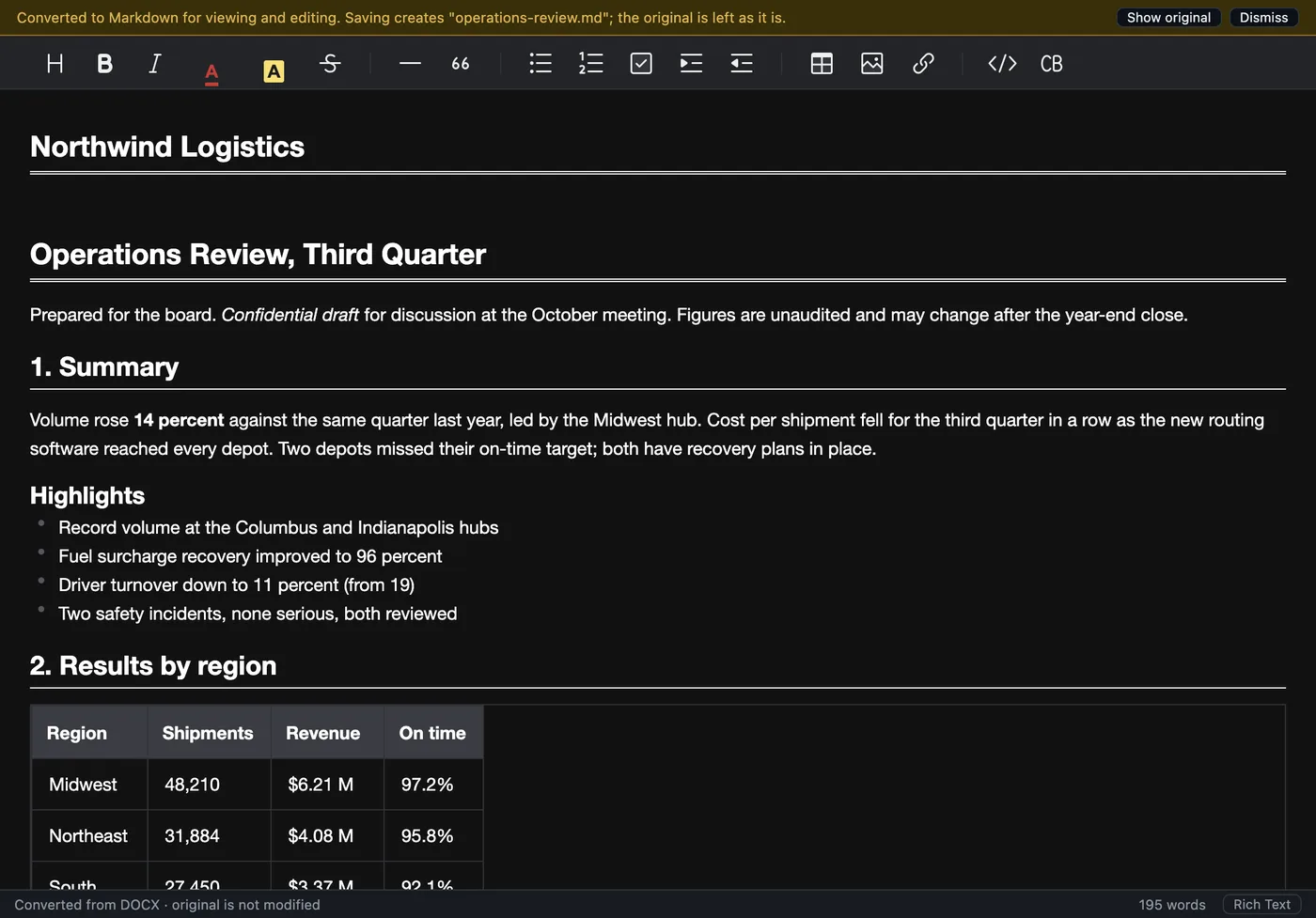
Convert a Word document in four steps
- Open the file. Double-click it if Anymark is your app for Word files, drag it onto the Anymark window, or use File > Open. Both .docx and the older .doc work, as do .rtf, .odt and Pages files.
- Check the result. The document appears as rich text you can edit like in a word processor. Press ⌘/Ctrl+/ (View > Rich Text / Markdown Source) to see the exact Markdown that will be saved.
- Edit if you like. Change a heading, fix a table, add a link. Format > Text Colour and Highlight are kept as small bits of inline HTML every Markdown reader understands.
- Save. File > Save writes a plain
.mdfile next to the original. The Word file itself is never changed.
Pictures
Pictures in the document are saved in a folder beside the Markdown file and linked from it, so the .md stays small and readable. If you would rather have one self-contained file, choose Tools > Embed Pictures in the Markdown File before saving.
Many Word files at once
To convert a whole folder of documents, use File > Batch Convert Folder… (see How to convert a whole folder to Markdown).
Try it on your own files. The full app, free for seven days, no card. Then $9.99 once, for life.
Download for Mac or Windows